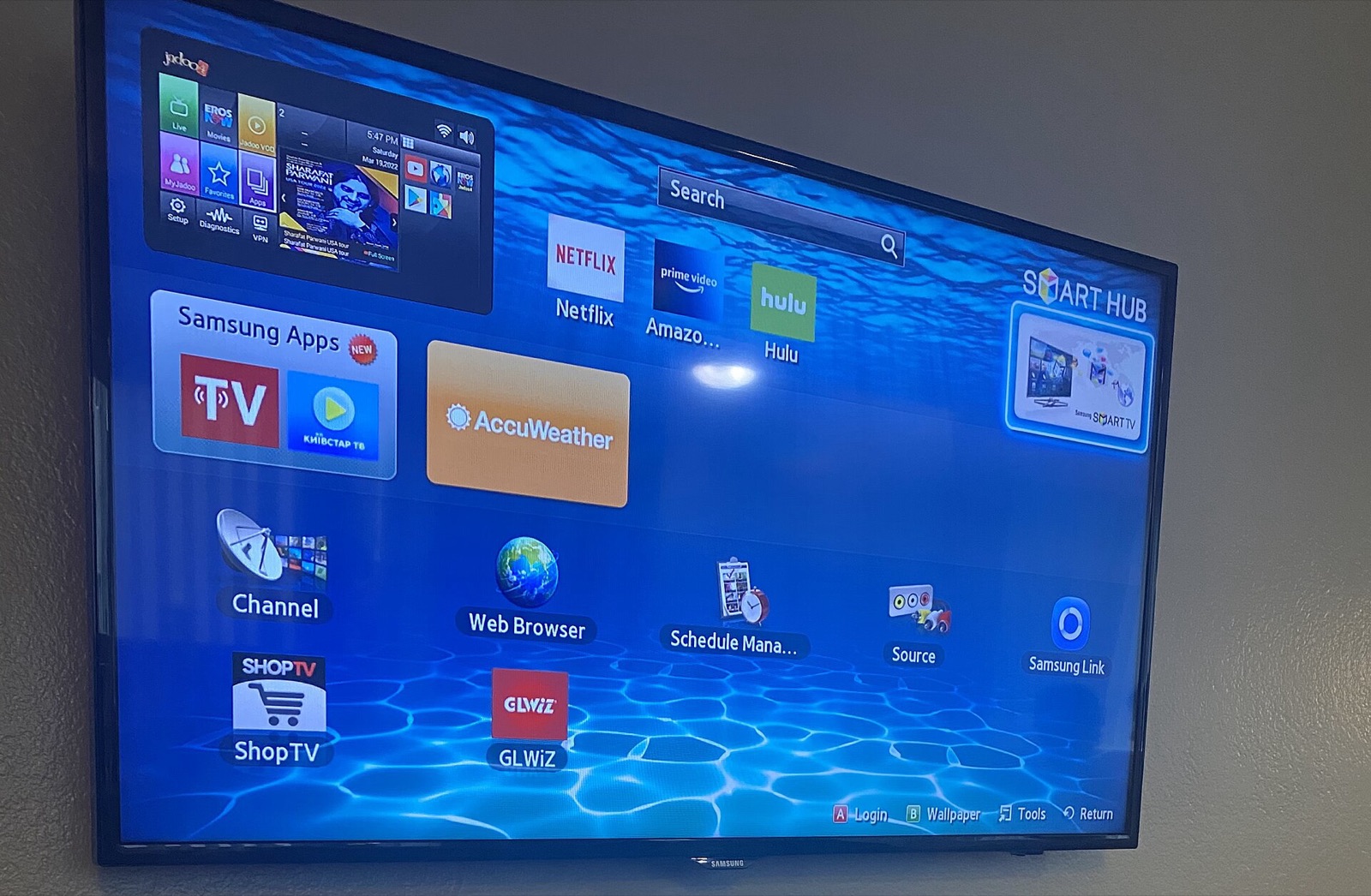

Remove the TV from your streaming and TV-maker accounts, then run a factory reset from the TV's settings menu. The reset erases apps, settings and sign-ins and starts the TV over at setup. If the TV won't turn on, sign it out of each account online. Then use a certified recycler, which must destroy data.
What a smart TV keeps about you
A smart TV is a small computer. The makers' own support pages list what their TVs store and what a reset erases.
- Your apps and saved data. LG says a reset erases purchased apps, personal settings and saved data.
- Your TV-maker or platform account. Samsung says its Smart Hub reset deletes Samsung account information and linked service accounts. Roku says a reset unlinks the TV from your Roku account.
- Your Google account, on Google TV and Android TV sets. Sony lists Google account and other login information among the data a reset deletes.
- Your Wi-Fi network settings. Sony and LG list network settings as part of a full reset.
- Viewing data. Vizio's 2022 V-Series manual says Vizio can link viewing data to the TV's IP address and, if available, your Vizio account.
Step 1: Remove the TV from your accounts online
Do this first, from a phone or computer. It works even if the TV is broken. It also covers apps you forgot you signed into.
| Account | What to do | Source |
|---|---|---|
| Netflix | Go to the Manage Access and Devices page in your account. Click the down arrow next to the TV and select Sign Out. Or choose Sign Out of All Devices at the bottom of the page. Devices not used in the last 90 days may not show in the list. | Netflix Help Center |
| Roku | Sign in at my.roku.com. Under My devices, click the TV and select Remove device from account. Then select Yes, remove device. This does not cancel subscriptions billed through Roku. | Roku Support |
| Google (Google TV, Android TV) | Go to myaccount.google.com and tap Security & sign-in. Under Your devices, tap Manage all devices. Tap the TV, then tap Sign out. If the TV's name shows more than once, sign out of each one. | Google Account Help |
Step 2: Factory reset the TV
A factory reset puts the TV back the way it left the factory. Menu names change between model years, so if your screen looks different, search your model number on the maker's support site.
Remove any USB drive first. Sony says to disconnect USB devices before a reset. Panasonic says not to unplug the TV while the reset runs. Samsung says its reset doesn't work while a streaming app such as Netflix is in use.
| Brand | Where the reset is | Source |
|---|---|---|
| Samsung | Settings > General & Privacy > Reset. Enter your PIN (0000 unless you changed it), select Reset, then OK. If your menu doesn't match: Settings > Support > Self Diagnosis > Reset. Also run Settings > Support > Device Care > Self Diagnosis > Reset Smart Hub (some models skip Device Care). This deletes Samsung account information. | Samsung US: How to reset your Samsung TV |
| LG | TVs released 2021 to 2025: Settings > All Settings > General > System > Reset to Initial settings. 2020: Settings > All Settings > Support > Reset to Initial settings. Before 2019: Settings > All Settings > General > Reset to Initial settings. LG's page doesn't list 2019 TVs. Choose Reset All, not the option that keeps network settings. | LG Help Library: How to reset your TV |
| Sony (BRAVIA 9 II and 7 II) | Press Quick Settings, then Settings > System > About > Reset > Factory data reset > Erase everything. Other Sony models may differ; check your model's help guide. | Sony BRAVIA Help Guide (BRAVIA 9 II / 7 II): Factory data reset |
| TCL Roku TV (and other Roku TVs) | Press Home, then Settings > System > Advanced system settings > Factory reset > Factory reset everything. | Roku Support; TCL Support |
| Vizio | Menu > Admin & Privacy > Reset to Factory Settings. Enter your system PIN if you set one, then highlight Reset and press OK. | Vizio V-Series user manual (2022) |
| Hisense | Depends on the TV's system. Hisense's FAQ says to press Menu, go to Support, then Self Diagnosis, then Reset. Hisense Roku TVs use the Roku steps above. | Hisense USA: TV common questions |
| Panasonic Amazon Fire TV | Home > Settings > Device & Software > Reset to Factory Defaults. Select Reset. Panasonic says menus may vary by model. | Panasonic: How to reset a Panasonic Amazon Fire TV |
What a reset does and doesn't erase
On most brands, the reset clears apps, sign-ins and settings and starts first-time setup when the TV turns back on. Sony and LG say a full reset also erases network settings.
Samsung is different. Its support page says a factory reset keeps network settings and resets everything else. The separate Smart Hub reset is what deletes Samsung account information. Run both on a Samsung TV.
If you'd rather not leave your Wi-Fi details on any TV, change your Wi-Fi password after it's gone. Then no old device can join your network.
If the TV won't turn on
You can't run a menu reset on a dead TV. You can still protect your accounts.
Some TVs have a reset button. Roku says to hold the Reset button for 12 seconds. On some Roku models, you hold Power and Find My Remote together for 12 seconds instead. TCL says to hold its reset button for about 10 to 20 seconds. Hisense says newer Hisense Roku and Android TVs have a button on the back you hold for 15 seconds. These only work if the TV still has power.
If nothing works, use a certified recycler. The EPA says both electronics recycling standards, R2 and e-Stewards, require destruction of all data on used electronics. e-Stewards says its processors must destroy all residual data on equipment they receive.
- Sign the TV out of every account online (Step 1).
- Change the passwords of any app you used on the TV.
- Take it to a recycler certified to R2 or e-Stewards, or ask the drop-off site if its recycler is certified.
Why this matters
The Federal Trade Commission gives advice to people selling a home with connected devices. It says to remove personal information and administrative access, then reset the devices. It also says to cancel or change account settings and logins. The same advice fits a smart TV you sell, give away or recycle.
A TV you donate or sell goes to a stranger. A TV you recycle may be handled by several companies. A reset and an account clean-up protect you either way.
Selling or donating instead of recycling
A reset is what lets the next owner set the TV up with their own accounts. Roku says to factory reset a Roku device before you return, sell or give it away.
Keep the remote with the TV, so the next owner can set it up.
Checklist
- Write down any app passwords you'll need on your new TV
- Sign the TV out of Netflix, Roku, Google and other accounts online
- Remove any USB drive from the TV
- Run the factory reset from the TV's settings menu
- On Samsung, also run the Smart Hub reset
- Check that the TV starts at first-time setup
- Change your Wi-Fi password if you want to be sure
Common questions
Does a factory reset delete everything on a smart TV?
It deletes your apps, sign-ins and settings and returns the TV to first-time setup. Sony and LG say a full reset also clears network settings. Samsung's factory reset keeps network settings, so run its Smart Hub reset too.
How do I factory reset a Samsung TV?
Go to Settings > General & Privacy > Reset and enter your PIN. The PIN is 0000 unless you changed it. If your menu doesn't match, try Settings > Support > Self Diagnosis > Reset. Also run Samsung's Smart Hub reset, which deletes your Samsung account information.
How do I factory reset a Roku TV?
Press Home, then go to Settings > System > Advanced system settings > Factory reset and choose Factory reset everything. Roku says this unlinks the TV from your Roku account.
How do I remove my Netflix account from an old TV?
On a phone or computer, open the Manage Access and Devices page in your Netflix account. Click the down arrow next to the TV and select Sign Out. Or choose Sign Out of All Devices at the bottom of the page.
How do I wipe a smart TV that won't turn on?
Sign it out of each account online, change your app passwords, and recycle it with an R2 or e-Stewards certified recycler. The EPA says both standards require destroying all data on used electronics.
What PIN does my TV ask for during a reset?
It's the PIN set on the TV. Samsung's default is 0000. Vizio asks for the system PIN only if you set one. If you've forgotten a changed PIN, contact the TV maker.
Do I need to smash the TV to protect my data?
No. Signing out of your accounts and running a reset clears what a TV stores about you. Breaking the screen is dangerous. If the TV is dead, a certified recycler must destroy the data.
Sources
Checked November 24, 2026. Your local drop-off site’s rules come first.
Samsung US: How to reset your Samsung TV ↗LG Help Library: How to reset your TV ↗Sony BRAVIA Help Guide (BRAVIA 9 II / 7 II): Factory data reset ↗Roku Support: Factory reset your Roku TV, player, or projector ↗TCL Support: How to perform a factory reset on your TCL Roku TV ↗Vizio V-Series user manual (2022), Admin & Privacy menu ↗Hisense USA: Televisions common questions ↗Panasonic: How to restore or reset a Panasonic Amazon Fire TV ↗Netflix Help Center: How to sign out of a device ↗Roku Support: How to remove a Roku streaming device from your Roku account ↗Google Account Help: See devices with account access ↗EPA: Certified electronics recyclers ↗e-Stewards ↗FTC: Buying or selling a "smart" home? Read this. ↗How we research →